A few years ago, running Android apps on a PC meant slow boot times, random crashes and games that simply refused to start. That has changed a lot. This summer alone, LDPlayer moved to Android 14 and MuMuPlayer jumped to Android 15, and most emulators now run happily alongside Hyper-V instead of fighting with it.
So which one should you actually install? I went through the seven free options that matter in 2026, looked at what each does well, where each falls short, and which kind of user each one suits best.
⚙️ How Android emulators work on Windows 11
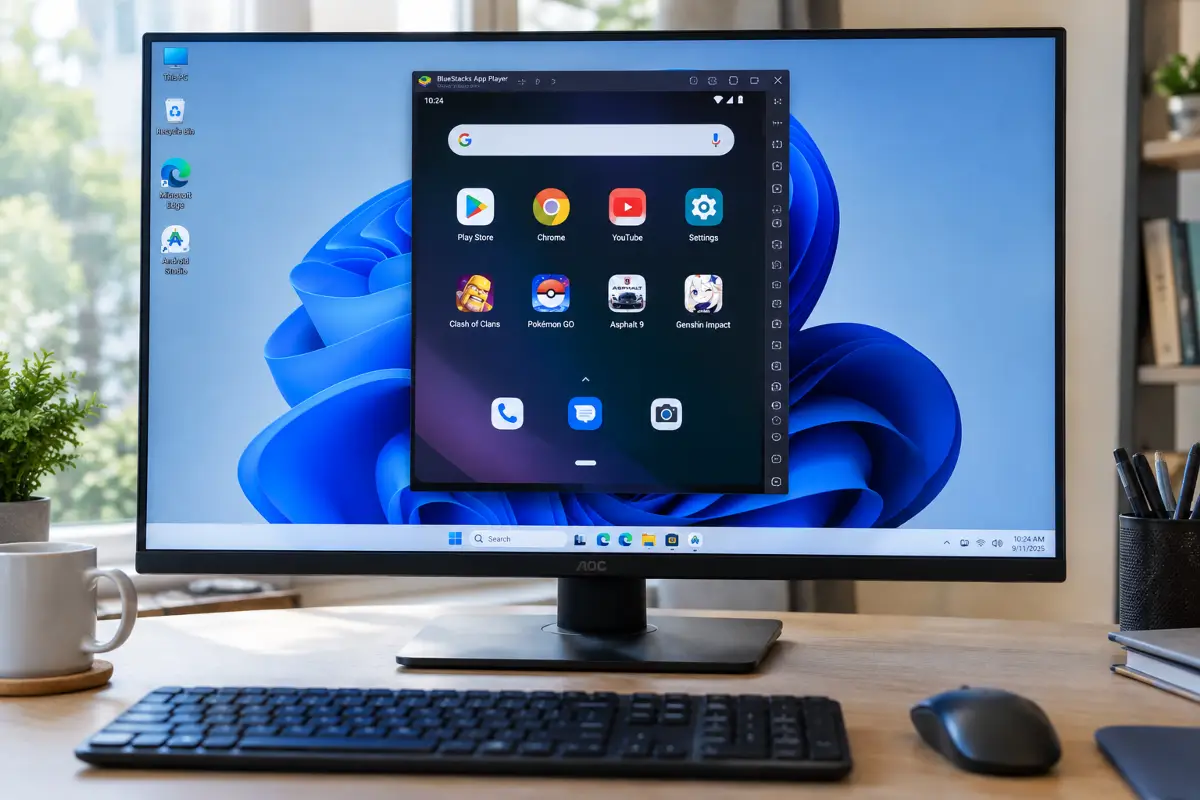
An Android emulator is basically a small virtual phone that lives inside a window on your PC. It boots a full copy of Android, and your apps think they are running on a real device.
To do that without crawling, emulators lean on hardware virtualization. That's a feature built into almost every modern processor (Intel calls it VT-x, AMD calls it AMD-V or SVM) that lets a virtual machine use the CPU almost directly. On top of that, Windows 11 has its own virtualization layers, such as Hyper-V and the Windows Hypervisor Platform. These are the same pieces that power WSL2, Windows Sandbox and some of the built-in security features.
For years, emulators and Hyper-V didn't get along, and the standard advice was "turn Hyper-V off". In 2026 that advice is mostly outdated. BlueStacks, LDPlayer 14, MuMuPlayer and Google Play Games for PC all work with Hyper-V enabled, so you rarely have to switch off Windows features anymore.
What about hardware? Here's a realistic baseline:
- RAM: 8 GB is fine for apps and lighter games. With 16 GB you can keep a browser open, run a demanding game, or use two instances without stutter.
- CPU: any quad-core from the last few years, with virtualization turned on.
- Storage: an SSD makes a huge difference. Each Android instance can grow to tens of gigabytes once you install games.
- Graphics: integrated graphics handle everyday apps. For titles like PUBG Mobile or Call of Duty: Mobile, a dedicated GPU gives you much steadier frame rates.

🔧 Before you install: check virtualization
This takes two minutes and saves you from the most common problem of all: an emulator that installs fine but runs painfully slowly, or refuses to start.
🥇 BlueStacks 5 Best overall Free

BlueStacks is the emulator most people have heard of, and there's a good reason it's still around. It installs without fuss, runs a huge range of apps and games, and gives you plenty of tools without forcing you to learn them on day one.
Its strongest card is the Multi-instance Manager. You can create separate Android "phones" on different versions, including Android 9, 11 and 13, so if one game insists on a newer system and another only behaves on an older one, you just run each in its own instance. The keymapping editor is also one of the best around: you drag controls onto the screen and assign keys, and many popular games come with ready-made layouts.
Eco Mode is worth a mention too. It lowers the frame rate of background instances, which keeps your fans quiet when you leave a game idling.
What works
- Very broad app and game compatibility
- Excellent keymapping editor
- Several Android versions side by side
- Macros and Eco Mode
- Huge community and help center
What doesn't
- Ads and promoted games in the free version
- Heavier on RAM than lighter rivals
- Overkill if you only need one simple app
🥈 LDPlayer 9 & 14 Best for gaming Android 14 Free

LDPlayer was built with gamers in mind, and it shows. Shooters and MOBAs such as PUBG Mobile, Free Fire, Mobile Legends and Call of Duty: Mobile feel responsive, the keymapping is quick to set up, and it's light enough to run several copies of a game at once. Multi-Instance Sync lets you mirror your actions across all of them, which is handy for players who manage more than one account.
The big news for 2026 is LDPlayer 14, launched in late June. It finally moves the emulator from Android 9 to Android 14, which matters because a growing number of new games won't even install on anything older than Android 10. It also works much better with Hyper-V, so you no longer have to disable Windows features to get it going. LDPlayer also says frame rates are up in the games it tested.
There's a catch, though. At the time of writing, LDPlayer 14 is still marked as beta on the official site, and LDPlayer 9 is still offered alongside it. My advice is simple: keep LDPlayer 9 if your games already run well, and try LDPlayer 14 when a title refuses to install or asks for a newer Android version.
What works
- Great performance in competitive games
- Light on resources
- Fast keymapping and macros
- Multi-instance with sync
- New Android 14 base with Hyper-V support
What doesn't
- LDPlayer 14 is still labelled beta
- Android 9 in the stable version is getting old
- Interface is built around games, not everyday apps
🥉 MuMuPlayer 6 Android 15 Free

MuMuPlayer comes from NetEase, the company behind a long list of popular mobile games, and it has quietly become one of the most interesting emulators on Windows.
The reason is simple: MuMuPlayer 6.0, released in July 2026, added Android 15. That puts it ahead of every other consumer emulator on this list in terms of Android version. You can still keep Android 12 instances next to the new ones, and there's a built-in upgrade option that can copy an existing Android 12 instance, with its apps and data, into a new Android 15 one.
Beyond that, you get the usual gaming toolkit: keyboard and mouse mapping, gamepad support, high refresh rates, multi-instance and graphics acceleration. Version 6 also improved OpenGL support for older graphics cards and outdated drivers, which is good news if your PC isn't new. The interface is clean and easy to find your way around, so it also works well for everyday apps.
What works
- Newest Android version of any consumer emulator
- Android 12 and 15 side by side
- Strong gaming performance
- Clean, simple interface
- Better support for older GPUs in version 6
What doesn't
- Android 15 support is still fresh, so expect the odd glitch
- Smaller English-speaking community
- Some games behave differently between instances
🛠️ MEmu Play Free

MEmu Play has been around for years and still has a loyal following, mostly among people who like to tweak. Its Multi-MEmu manager lets you create instances on different Android versions and set CPU cores, RAM, resolution and graphics mode for each one separately.
That makes it handy for testing how an app behaves on older systems, or for running a light instance for a messaging app next to a heavier one for a game. It also has keymapping, high-FPS options and drag-and-drop APK installs. Just take your time during setup and read each screen, because the installer may offer extra software you don't need.
What works
- Fine control over CPU, RAM and resolution
- Different Android versions per instance
- Easy APK installs
- Good for app testing
What doesn't
- Dated interface
- Older Android versions than the leaders
- Installer may include optional offers
🤖 NoxPlayer Free

NoxPlayer is aimed at people who like to automate. Its macro recorder is easy to use, the multi-instance manager supports 32-bit and 64-bit setups on Android 5, 7 and 9, and it offers optional root access, which is rare among consumer emulators and useful if you want to experiment.
The downside is age. Its newest Android environment is Android 9, and the interface hasn't changed much in years. It's also worth knowing that NoxPlayer's update system was compromised in a supply-chain attack back in 2021. The issue was fixed, but it's a good reminder to download only from the official site and keep the app updated.
What works
- Simple, powerful macro recorder
- Optional root access
- 32-bit and 64-bit instances
- Lots of settings to play with
What doesn't
- Android 9 at best
- Interface feels dated
- Promotional content in the free version
🎮 Google Play Games for PC Official Free
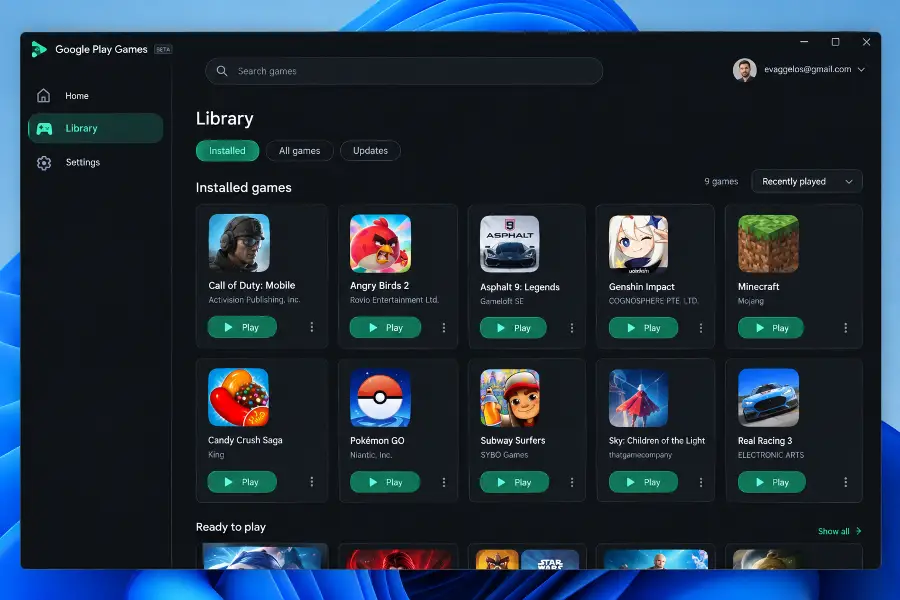
Google Play Games for PC isn't a traditional emulator, and that's the point. You don't get an Android home screen, a file manager or the full Play Store. You get a clean launcher with games that Google has tested on PC, each tagged by how well it runs.
The main benefit is your Google account. In supported games, progress syncs between your phone, tablet and PC, so you can pick up where you left off. Controls have improved a lot too, with keyboard remapping, mouse aiming, frame-rate settings and controller support in compatible titles.
The trade-off is freedom. You can't sideload APKs, you can't install regular apps, and you're limited to Google's catalog. If a game isn't there, this won't help you.
What works
- Official and very easy to set up
- Cloud saves across devices
- No ads inside the app
- Games are tested for PC
What doesn't
- Games only, no regular apps
- No APK sideloading
- Stricter hardware requirements
👨💻 Android Studio Emulator Developers Free
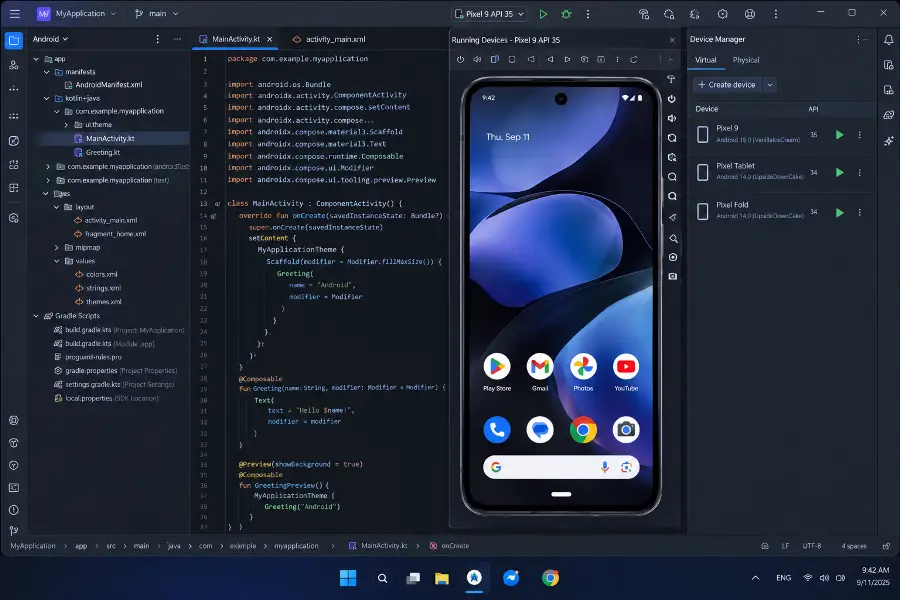
The emulator inside Android Studio is Google's own tool for building and testing apps. It isn't meant for gaming, but it's the most accurate way to see how an app behaves on different phones, tablets and foldables.
Through the Device Manager you create virtual devices with any Android version, screen size or memory setup you like. You can then fake GPS locations, a weak network, low battery, screen rotation and sensor input, and everything ties straight into the debugger and Logcat.
For a regular user, though, it's too much. You have to download Android Studio, SDK components and system images, and it uses more resources than the gaming-focused emulators.
What works
- Official and always up to date
- Any Android version and device profile
- GPS, network, sensor and battery simulation
- Full debugging tools
What doesn't
- Complicated for non-developers
- Heavy on RAM and disk
- Not built for gaming
⚠️ Emulators to skip in 2026
You'll still find these on download sites and in old "best of" lists. I wouldn't install any of them on a Windows 11 PC today:
📊 Side-by-side comparison
| Emulator | Android version | Best for | Hyper-V friendly | Price |
|---|---|---|---|---|
| BlueStacks 5 | 9, 11, 13 | All-round use and gaming | ✔ | Free (ads) |
| LDPlayer 9 / 14 | 9 / 14 (beta) | Competitive gaming | ✔ (v14) | Free (ads) |
| MuMuPlayer 6 | 15, 12 | Newest games and apps | ✔ | Free |
| MEmu Play | Several, per instance | Testing and tweaking | Check help page | Free |
| NoxPlayer | 5, 7, 9 | Macros and root | Check help page | Free |
| Google Play Games | Managed by Google | Official gaming | ✔ | Free |
| Android Studio | Any | App development | ✔ | Free |
🎯 Which one should you pick?
There's no single winner, so match the emulator to what you actually want to do:
Whatever you choose, download it only from the official website, skip any extra software in the installer, and keep both Windows and your graphics drivers updated. Most "the emulator crashes" problems turn out to be an old GPU driver or virtualization switched off.
My experience
I installed BlueStacks 5, LDPlayer 9, LDPlayer 14 and MuMuPlayer 6 on my main desktop: a Ryzen 5 5600 with 32 GB of RAM, an RTX 3060 and Windows 11 24H2, with Hyper-V and WSL2 left switched on because I use them every day.
The good news first: all four started without asking me to disable anything, which would not have been the case a couple of years ago. BlueStacks was the smoothest to set up and ran every game I threw at it, but with one Android 13 instance and a game open it sat at around 3.5 GB of RAM, noticeably more than the others.
LDPlayer 9 felt the snappiest in a shooter and was the lightest on memory. LDPlayer 14 ran the same game fine, but one of my older puzzle games crashed on launch, which is exactly what you'd expect from a beta. I went back to version 9 for that one.
MuMuPlayer surprised me the most. I had a newer game that refused to install on Android 9 and 12, and it installed straight away on an Android 15 instance. The built-in upgrade copied my Android 12 instance with all its apps in a few minutes.
My setup today: LDPlayer 9 for everyday gaming, MuMuPlayer for anything that needs a newer Android, and Google Play Games for the one game I also play on my phone, because the cloud save just works.
💬 Comments