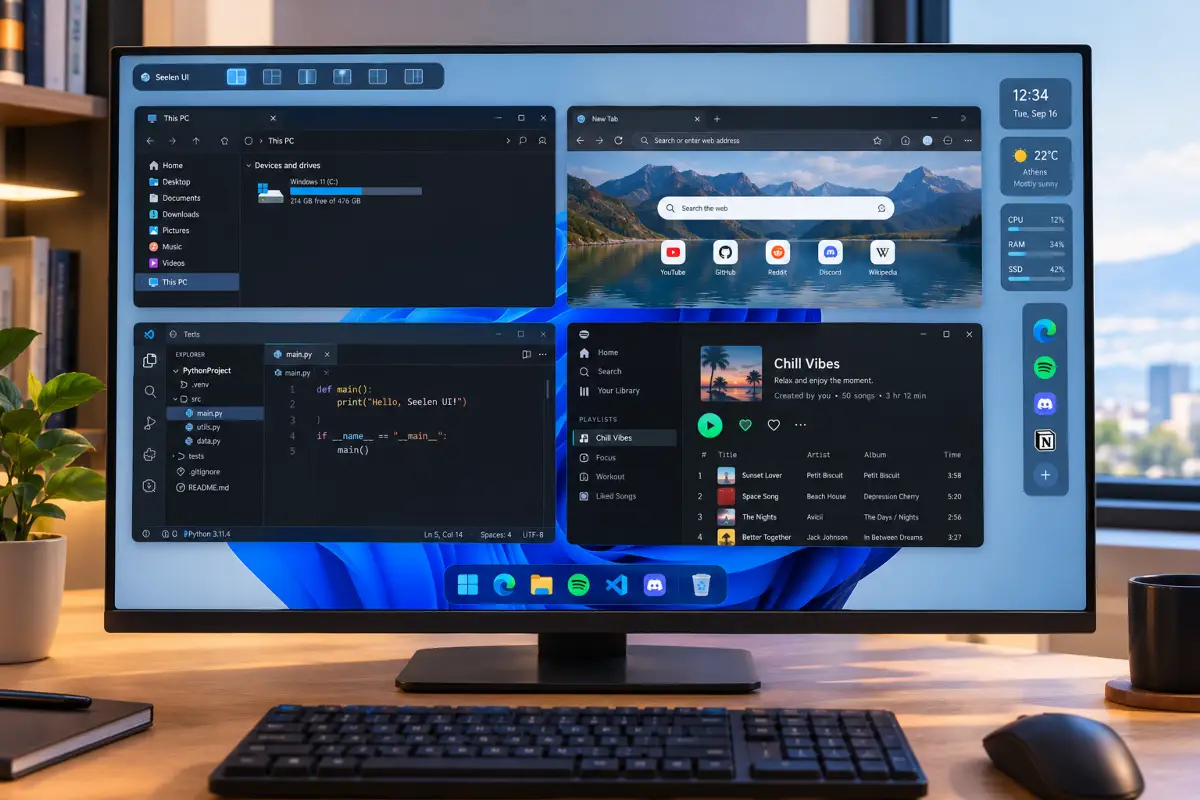
Seelen UI is one of the most impressive free tools for Windows available right now. The latest version, v2.5.7 (released March 2026), has already gained strong traction in the Windows customization community — and once you try it, it's easy to see why. This guide walks through what it actually does, how reliable the project is, how to install it safely, and what to expect once it's running on your own machine.
What Is Seelen UI, and Why Does It Matter?
Seelen UI is a desktop environment layer for Windows 10 and 11, open-source and completely free. What makes it stand out from the dozens of other customization tools out there is simple: it doesn't modify any Windows system files.
Instead, it runs as a visual layer on top of your existing system. That means if you ever decide to remove it, Windows goes right back to exactly how it was before — no leftover registry changes, no broken shell, no cleanup needed.
Most customization tools can't say that. It's one of the main reasons Seelen UI has picked up so much attention so quickly, especially among people who are curious about ricing their desktop but are nervous about breaking something important.
Key Features at a Glance
Here's what you actually get once it's installed, explained in plain terms:
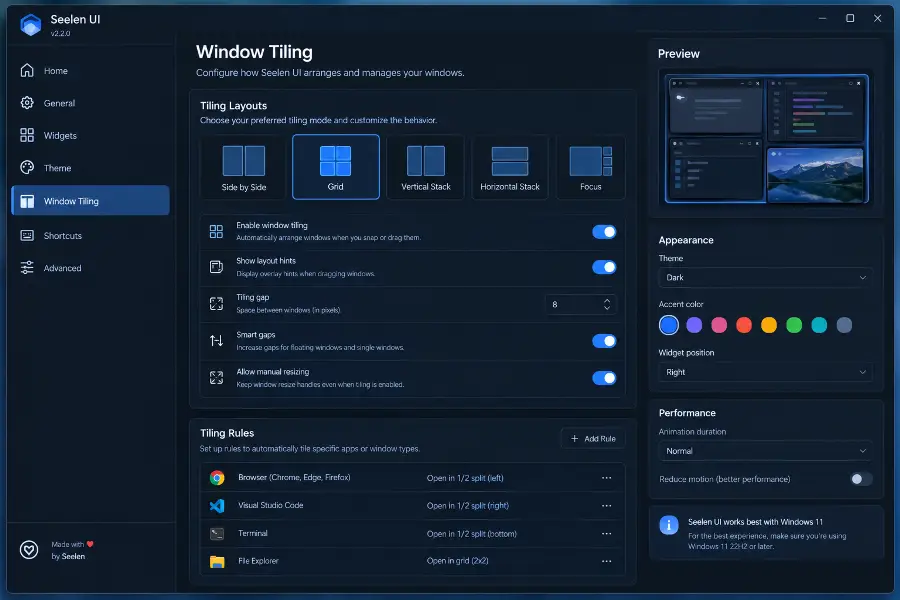
Smart window management
Your windows snap and organize themselves automatically, like pieces of a puzzle. No more dragging edges around to fit three apps on one screen.
Fast app launcher
Open any app or run a command with a few keystrokes, without digging through the Start menu.
Media controls
Play, pause, or skip tracks straight from the desktop. Works with Spotify and most popular media players.
Full customization
Change the taskbar, icons, themes, widgets, and menus, all from one settings panel that doesn't require editing config files by hand.
70+ languages
The interface is available in more than 70 languages, Greek included.
Lightweight footprint
Each module typically uses around 50–100 MB of RAM, and CPU usage drops automatically once a full-screen app, like a game, takes over.
Who Built It, and How Reliable Is It?
Seelen UI was created by developer Eythan David and is openly hosted on GitHub. The name comes from the German word for "souls" — the idea behind it is giving your desktop its own identity, rather than the one Microsoft ships by default.
Version 2.5.7 landed in March 2026, and the project is actively maintained: updates land frequently, often weekly, and there's a genuinely active Discord community where users share fixes, feedback, and ideas for what comes next.
In plain terms: this isn't an abandoned side project. It's evolving fast, and the pace of updates is one of the better signs of a tool worth trusting long-term.
Pros and Cons
✅ Pros
- No system file changes — very safe to use
- Free and open-source — no subscriptions or hidden costs
- Automatic window organization — great for multitasking
- Lightweight — minimal impact on system resources
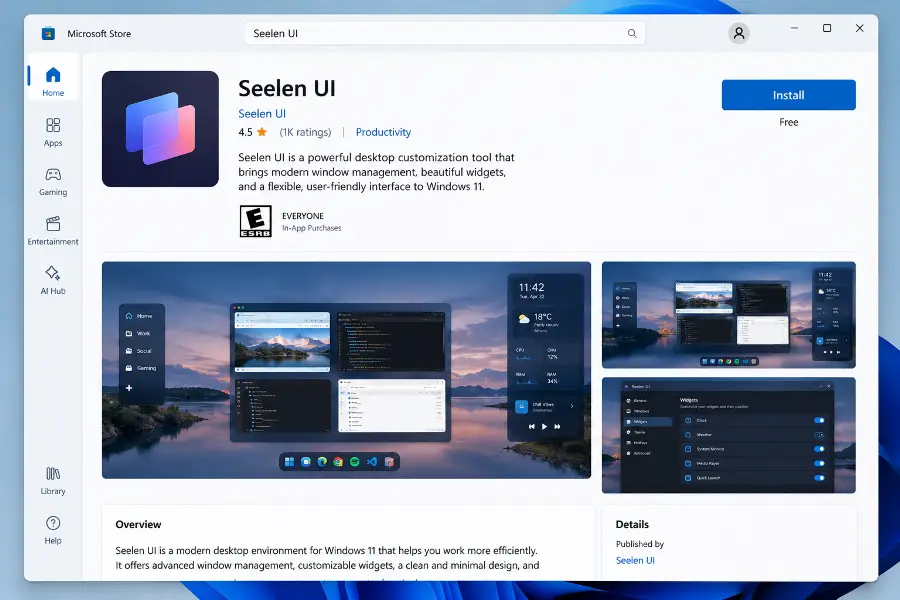
- Easy install through the Microsoft Store
- Frequent updates and an active community
❌ Cons
- Requires WebView2 Runtime — usually already present on modern systems
- Some antivirus tools may flag the .exe installer (a known false positive)
- On fresh Windows installs, a blank screen can appear until Windows Update runs
- Less well-known than older, more established customization tools
How to Install Seelen UI
There are four ways to get it running, ranked roughly from easiest to most hands-on:
winget install --id Seelen.SeelenUI
Who Is Seelen UI For?
- 🧑💻 People who multitask constantly — developers running an editor, terminal, and browser side by side without manually resizing anything
- 🎓 Students who want notes and slides arranged neatly on screen at the same time
- 🎵 Music listeners who want quick Spotify control without switching windows
- 🖥️ Anyone tired of the default Windows look, looking for something that feels more personal and modern
My Experience
I installed Seelen UI on a Windows 11 24H2 laptop (16 GB RAM, mid-range integrated graphics), using the Microsoft Store method described above. Setup took under two minutes, and the app asked for permission to run at startup, which I accepted so the widgets and tiling would be active immediately after login.
Right after install, I did hit the blank-screen issue mentioned in the cons section above: the main widget bar didn't render on first launch. Running Windows Update and restarting fixed it in about five minutes — this appears to be tied to an outdated WebView2 Runtime rather than anything wrong with Seelen UI itself.
With PowerToys already installed on the same machine, I disabled FancyZones as recommended, and window tiling worked without conflicts from that point on. I measured RAM usage with Task Manager over a normal workday: Seelen UI's core processes settled around 78 MB combined, rising briefly to about 110 MB when the app launcher was open. CPU usage stayed close to 0% at idle, and dropped further automatically once I launched a game in full screen.
The part that made the biggest day-to-day difference was the automatic window tiling. Snapping a code editor, a terminal, and a browser into a three-way split took a single keyboard shortcut instead of manually dragging each window's edges — small, but it adds up over a full day of switching between apps.
Final Verdict
If you're after productivity, customization, and a modern desktop experience without spending a cent, Seelen UI is absolutely worth the ten minutes it takes to set up.
Frequently Asked Questions
What is Seelen UI?
Seelen UI is a free and open-source desktop customization layer for Windows 10 and Windows 11. It allows users to change the look and behavior of their desktop without modifying system files.
Is Seelen UI safe to use?
Yes, Seelen UI is considered safe because it does not modify Windows system files. It works as a layer on top of the system, and it can be easily removed without affecting your OS.
Does Seelen UI affect performance?
Seelen UI is lightweight and typically uses around 50–100 MB of RAM per module. It also reduces resource usage automatically during full-screen applications like games.
Can I use Seelen UI with PowerToys?
Yes, you can use Seelen UI together with Microsoft PowerToys. However, it is recommended to disable FancyZones in PowerToys to avoid conflicts with window management.
How do I install Seelen UI?
You can install Seelen UI from the Microsoft Store, using the winget command, downloading the .msix package from GitHub, or using the traditional .exe installer.
Does Seelen UI support multiple languages?
Yes, Seelen UI supports more than 70 languages, including Greek.
💬 Comments